Rolling out a desktop agent to 500 Windows PCs without a ticket storm
A runbook for IT: pilot group, allow-listing, the silent install switch, the non-admin installer, update channels, and what users see, which should be nothing.
A desktop agent rollout generates tickets in three ways: the installer asks the user something, the agent breaks something, or the user notices it and asks what it is. A good rollout removes all three in advance. This is the sequence I would run for a few hundred Windows PCs, written for the person who will actually push the package.
It is written around ReclaimTime, but the shape works for any agent that installs silently and phones home over HTTPS.
Before anything is installed
Confirm the requirements. Windows 10 or later, 64-bit. There is no ARM64 build. About 165 MB on disk. Outbound HTTPS on port 443 to a short list of hosts, and nothing inbound. If any of those is a problem in your estate, find out now.
Allow-list the hosts. The client talks to the backend for sign-in, settings and uploads, and to reclaimtime.com and the download host for version checks and updates. The exact hostnames are on the domains and URLs page. Corporate proxies that do TLS inspection need to let these through unmodified; the client makes no plain HTTP requests, so there is nothing to downgrade.
Decide admin or non-admin. There are two installers. The standard one needs local administrator rights and installs the background components that keep the client running and restart it if it is closed. The non-admin installer needs no elevation and installs per user. For a managed fleet pushed by SCCM or Intune, the standard installer is the usual choice because the deployment tool already runs elevated.
Get the accounts in place. Each PC signs in with its Windows account: the client sends the Windows identity, and the backend matches it to a ReclaimTime account that has single sign-on enabled. If the account does not exist yet, the client shows a status dialog and retries every few minutes, and starts recording once the account exists. So the order is: create the accounts in the dashboard, then install. Installing first is not harmful, it just means the first day's data starts late.
Check the publisher name. The installers are code signed as FocusMe (Reclaim Time Ltd), with a timestamp. That is the name Windows shows, and the name to expect in an application allow-list or an EDR exclusion. If your endpoint protection flags unknown publishers, add this one before the pilot, not after the first alert.
The pilot group
Pick ten to twenty machines that cover your variations: both laptop and desktop models, each site, each Windows build in use, at least one machine behind the strictest proxy, and at least one person who will tell you if something is off.
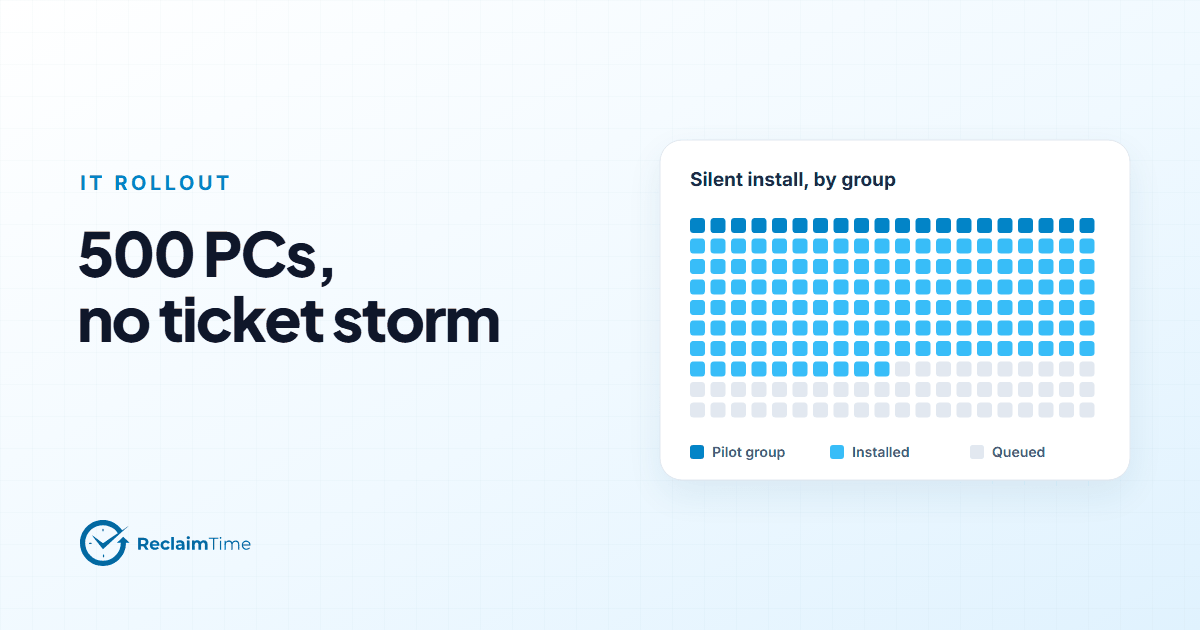
Push the installer with the silent switch:
ReclaimTimeSetup.exe /S
That is the standard NSIS silent flag. There is no MSI; the executable is what SCCM, Intune and a logon script all run. A silent standard install also removes any existing FocusMe installation on the machine, which matters if anyone had the consumer app.
Give the pilot a week. During that week:
- Watch the Versions page in the dashboard. Every machine that signs in appears there with its client version, operating system and computer name. A machine that is missing after a day has either not installed, cannot reach the backend, or is signed in as a Windows account that has no ReclaimTime account yet. Each of those has a different fix and the Versions page tells you which.
- Check that activity appears for the pilot users after the first working day. The dashboard hides rows younger than fifteen minutes, so do not panic at 9:05.
- Ask the pilot users what they saw. The answer should be nothing. In locked mode the client has no window; the only visible artifact is a sign-in status dialog on first run. If someone saw more than that, find out what before scaling.
Scaling to everyone
Once the pilot is clean, push in waves by site or by department rather than all at once. Not because the install is risky, but because the Versions page is easier to read when a wave is a few dozen machines, and because the corporate list (which applications count as work) usually needs a tweak after each new department's first week of data.
A few things that save tickets at this stage:
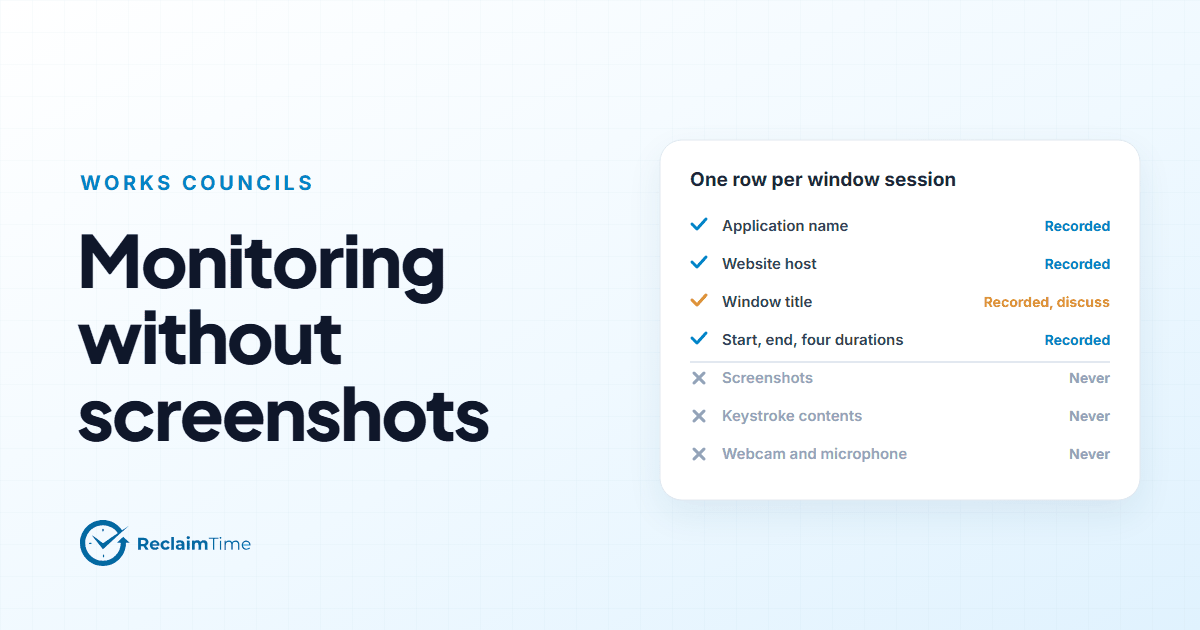
Tell people before, in one paragraph. What it records (applications, sites, time, during working hours), what it never records (screens, keystrokes, files, messages), who sees it, why. Our security and privacy page has the lists. People who are told in advance do not raise tickets. People who discover a new process in Task Manager do, and they are right to.
Set working hours before the first wave. Working hours are configured per organization and can be overridden per person. Nothing is recorded outside them. If the default is wrong for a site, that site's first week of data is wrong too.
Do not let the browser extension become a surprise. The optional extension improves website detection and blocking in Chrome and Edge. It is deployed by policy (the force-install list), never by prompting the user. If you plan to use it, include it in the same wave as the client so nobody gets a second change later.
Updates after the rollout
The client checks a version file over HTTPS and installs updates itself, silently. You do not repackage. There are two kinds of channel: general, and a dedicated channel for organizations that need their own cadence. For a large fleet, ask for a dedicated channel so that an update reaches your machines when you have said so, not when it is released.
The Versions page is the control here too. Set the minimum version you expect in the organization settings and the page will show which machines are behind.
When something goes wrong
The failure modes, in the order they actually occur:
- Machine not on the Versions page. Check that the installer ran (SCCM or Intune will tell you), then that the host can reach the backend (a browser on that machine to the backend URL is enough), then that the Windows account maps to a ReclaimTime account.
- Signed in, no activity. Working hours. Nine times out of ten the organization's working hours do not cover the time you are looking at, or the person's override does not.
- Activity but everything is anonymous. The corporate list is empty or does not match. Rows for applications not on the list are anonymized by design.
- Someone closed it and it is gone. On a non-admin install there are no background components to restart it. On a standard install there are. If people can close it and you did not expect that, you have the wrong installer on that machine.
The troubleshooting guide in the documentation walks through each of these.
The whole thing on one page
- Allow-list the hosts and the signing publisher.
- Create the accounts, with SSO enabled.
- Set working hours and a first corporate list.
- Pilot ten to twenty machines for a week, using the Versions page.
- Tell people, one paragraph.
- Push in waves; adjust the corporate list after each.
- Ask for a dedicated update channel.
Run in that order, the tickets you get will mostly be about the corporate list, which is a good sign: it means people are looking at the data.
See this on your own teams
Start with a pilot group and see the first team reports within a week. A reply comes within one business day.