Why most teams use ReclaimTime for tracking alone, and when blocking earns its place
Blocking is off by default and most organizations never turn it on. Here is where it genuinely helps, where it backfires, and how to set a policy by group without starting a war.
People sometimes assume that a product with "focus policies" on the homepage is mostly about blocking websites. It is not, and the numbers in our own deployments say so: blocking is off by default, it takes three deliberate steps to switch on, and most organizations that run ReclaimTime use it for tracking only and never create a plan.
That is not a failure of the feature. It is the right default. This post is about why, and about the narrower set of situations where blocking is the correct tool.
Why tracking alone is usually enough
Once a team can see its own time distribution, most of the drift corrects itself without anyone being blocked from anything.
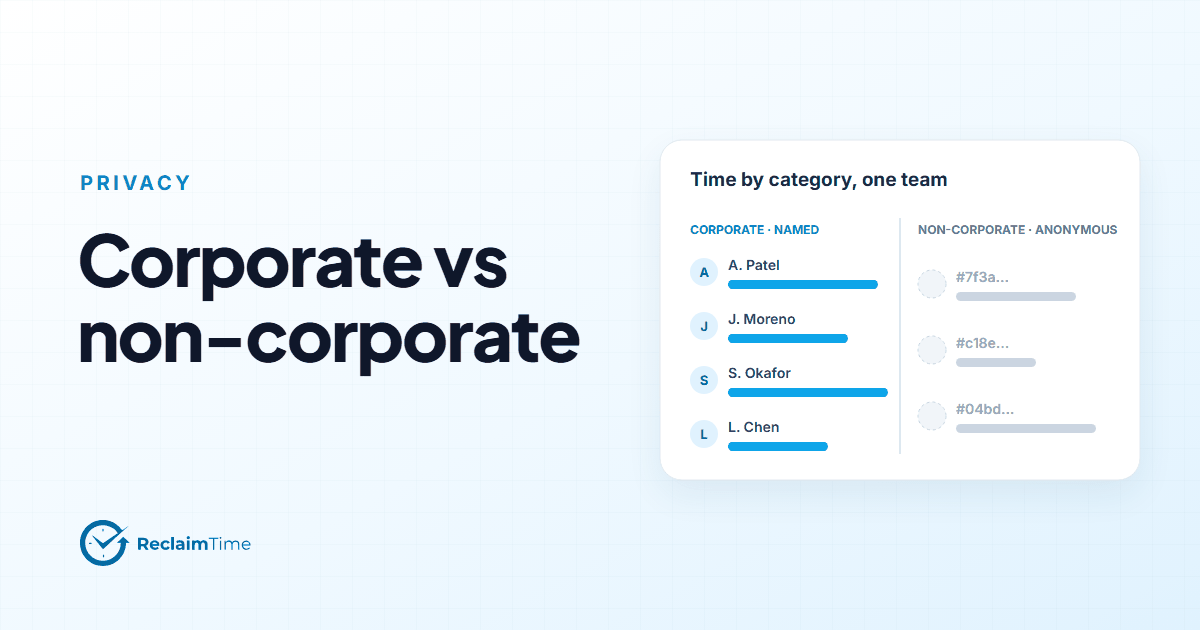
That sounds optimistic, so here is the mechanism. The data shows a team lead that the fourth-biggest application last week was a spreadsheet nobody was supposed to need. The conversation that follows is about the CRM's search, not about the spreadsheet. The non-corporate share, anonymous and at team level, is visible to the team as well as the lead, and teams that can see their own number tend to move it. None of this requires a block, and a block would have hidden the information: if the spreadsheet were blocked, the lead would never learn that the CRM search was broken.
Blocking also has a cost that tracking does not. A block is visible, it is felt, and it is argued with. Every block generates exceptions ("I need that site for this one customer"), and every exception is an administrator's time. For a general-purpose team, that cost almost always exceeds the benefit.
Where blocking earns its place
There are four situations where I would turn it on without hesitation.
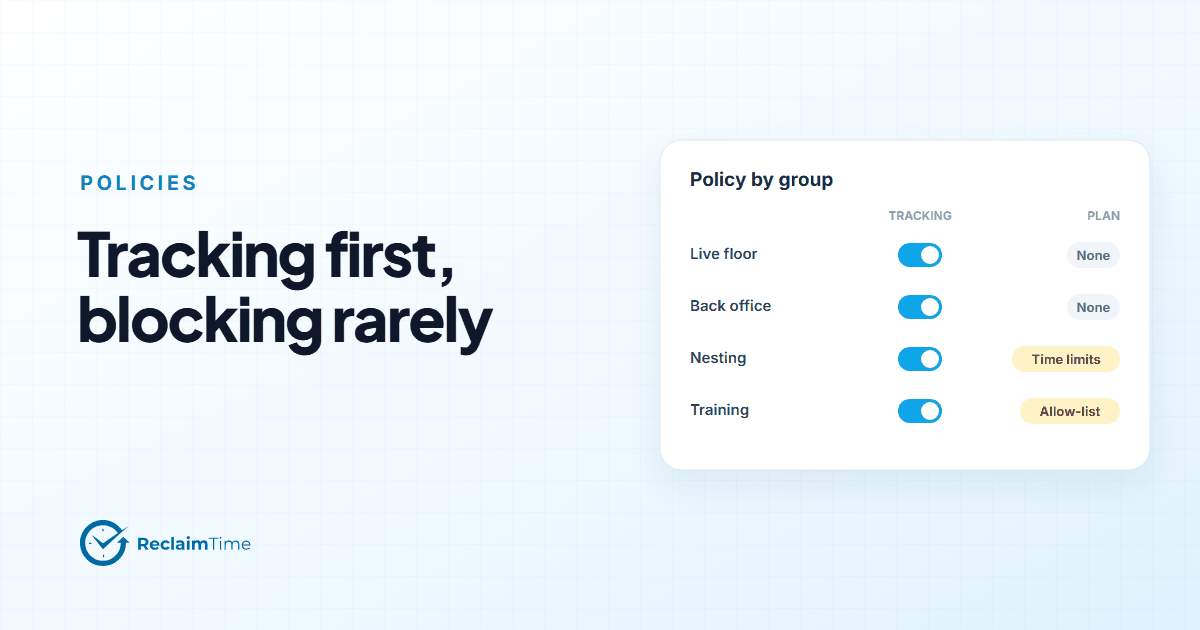
Training and nesting. New hires in a contact center go through weeks where the goal is to learn the tools, not to multitask. An allow-list plan (only the listed applications and sites can be used) during training is a kindness as much as a control: it removes the temptation and the ambiguity, and it is lifted when the person goes live. I have written a separate post on nesting policies.
Shared and shop-floor machines. A PC on a retail floor or in a warehouse office is not anybody's personal workspace. A block list for a handful of sites on those machines, with tracking switched off entirely, is a reasonable configuration and is how some organizations run ReclaimTime. The product supports blocking without tracking precisely because of these machines.
A specific, named problem. One site, one team, a measurable effect on handle time, a conversation that has already happened. A targeted block in that situation is the end of a process, not the start of one, and the data that justified it is the same data that will show whether it worked.
Regulated environments. Where a role must not use certain tools during certain tasks, a plan is the enforcement layer for a rule that already exists on paper. Here the block is doing compliance work, not productivity work.
Notice what is not on the list: "the team's productivity is low." A general block list imposed on a team because a number looks bad is the situation where blocking backfires. The number is usually telling you about a tool or a schedule, and the block tells the team that nobody looked.
How a plan works, briefly
A plan in ReclaimTime belongs to a group and is applied to everyone in it. It can:
- block websites or applications from a list, or allow only those on a list;
- choose what happens on a block: close the tab or send the browser to a home page; for an application, close it, hide it or end it;
- set a daily time limit, and a limit on the number of launches;
- enforce breaks;
- run all day, during set hours, or in a recurring window;
- notify the person, or block silently.
Plans are assigned to groups, so a nesting group, a live floor and a shared-PC group can each have their own, and a person moving from nesting to live changes plan by changing group. Enabling plans at all is an account-level setting, and a plan has to be set to Active before it does anything, which is why "it takes three deliberate steps" above is literal.
There is no category-based blocking ("block social media") and no simple per-group block list yet. You list the sites. For the targeted uses above, that is the right granularity; for a general "block everything fun" policy it is laborious, and the labor is a useful friction.
Setting a policy without starting a war
If one of the four situations applies, a few practices keep it from becoming a grievance.
Say what and why, before. Turn the notify option on so people are told why a site closed, and tell the group in advance what the plan does and when it ends. "This site is blocked during nesting; it is available once you go live" said once prevents a hundred tickets.
Scope by group, not by organization. A plan on the whole organization is a plan on the team lead, the IT administrator and the person whose job is social media. Put it on the group that needs it.
Put a time limit before a block. A daily limit on a site is softer than a block and often enough. It also produces data about how much the site was actually used, which a block never does.
Review it on a date. Every plan should have an expiry in someone's calendar. Nesting plans expire when nesting does. A targeted block for a specific problem should be reviewed when the data shows the problem is gone.
Keep tracking on. The point of the block was to change a number. If tracking is off, you will never know whether it did.
Most readers of this post will finish it and not create a plan, which is the right outcome. The plans for groups page in our documentation has the mechanics for the readers who have one of the four situations.
See this on your own teams
Start with a pilot group and see the first team reports within a week. A reply comes within one business day.